Creating Relationships
There are two methods to create Relationships:
Creating Relationships via drag & drop
The faster option is via drag & drop and is possible only when both objects are in the same folder.
- To create the Relationship, drag one of the objects with the mouse over the object you want to relate it to.
The "Set Relationship" dialog opens, with the two selected objects.
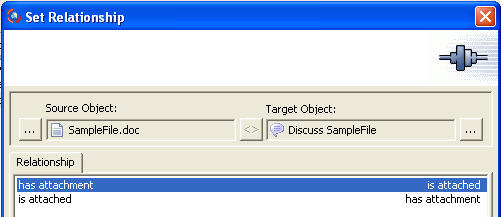
- To complete the creation of the Relationship select one of the two Relationship options: "has attachment" or "is attached".
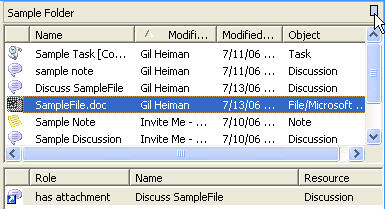
The Relationship is created and displayed in the frame below the objects.
Creating Relationships across the entire workspace
The other option to create Relationships requires additional steps but it allows you to create Relationships with any object in the workspace.
The following steps will guide you through creating such Relationship.
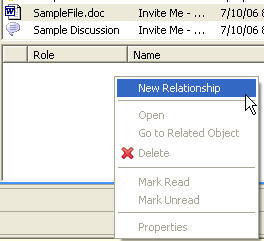
- Highlight an object and then move your cursor down to the Relationship frame and right click with your mouse to view the Relationship menu options.
Select "New Relationship".
Note:
If the frame is not visible, click on the small button on the top right corner of the object frame to open it (See the cursor in the below screenshot).
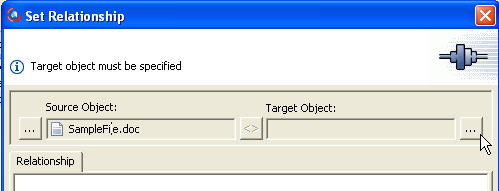
The "Set Relationship" dialog opens.
- Click on the "..." button just below the "Target Object" to select the related object.
The "Select Object" dialog opens.
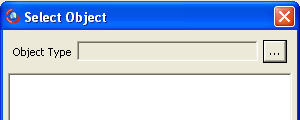
- Click on the "..." button just right of the "Object Type" field to select the related object's type.
The "Object Types" dialog opens.
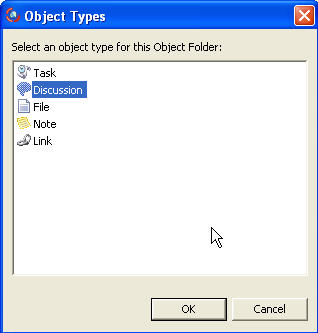
- Select an object type.
In this example, we are creating a Relationship between a MS Word file and a Discussion about the file.
Since our original object was the File Object we want to select a Discussion Object to set the Relationship.Once you select a certain object type, all objects of this type in the entire workspace (not only the active folder) are displayed.
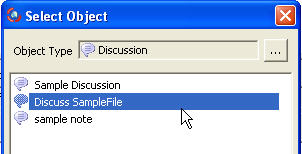
- Select one of the displayed objects.
The "Set Relationship" dialog opens again, this time filled with the two selected objects.
- To complete the creation of the Relationship select one of the two Relationship options: "has attachment" or "is attached".
This Relationship is created and displayed in the frame below the objects.
Delete
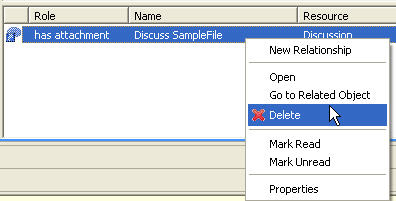
To delete a Relationship, highlight, right-click it and select the "Delete" option.
Notes:
- Relationships are restricted to within a workspace and cannot be created with objects outside the current workspace.
- An object can have unlimited Relationships with other objects in the same workspace.
Related Tasks: