
Collanos in the Media
 März 24
OSTATIC: 6 Open Source Resources To Help You Get More Done
März 15NotebookReview.com: Collanos - Project Collaboration Software
 März 14
netzwelt: Collanos Workplace: Der virtuelle Arbeitsplatz
Dezember 6AlternativeTo: Collanos as Alternative on Mac Desktop
Dezember 6AlternativeTo: Collanos as Alternative on Windows Desktop
 Subscribe in a reader
Subscribe by Email
Collanos Press Releases
März 3
Collanos and Translumina Networks launch the LumiMagic telephone switchboard for SMBs
März 3
Collanos und Translumina Networks lancieren die LumiMagic Telefonzentrale für kleine und mittelständische Unternehmen
Januar 21
Collanos Wins "Red Herring 100 Global" Award
Subscribe in a readerSubscribe by Email
Collanos Blog
Collanos Forum
- [feed]http://forum.collanos.com/index.php?action=profile;u=9888 <![CDATA[When it comes to preparing beef jerky, there is something vital that you
- [feed]http://forum.collanos.com/index.php?action=profile;u=9742 <![CDATA[I received an email today from a friend. His inquiry was 'How do I get st
- [feed]http://forum.collanos.com/index.php?action=profile;u=9728 <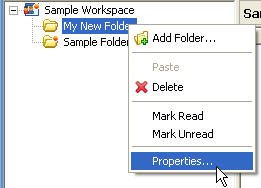
The "Folder Properties" dialog opens.
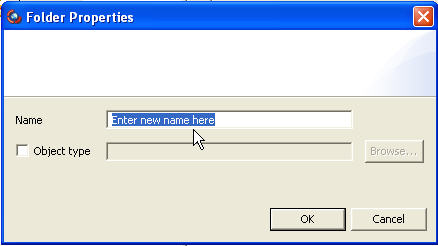
- Enter the new name of the folder and click the "OK" button.
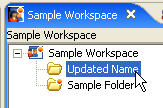
The new name is updated and displayed in the folder structure in your workspace.
B. Double Click to Rename
- To rename a folder double click on the folder name and the folder name will become an editable field.
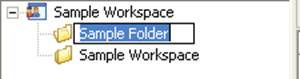
- Enter the new name for the folder and press enter. The new name is updated and displayed in the folder structure in your workspace.
Once team members synchronize with your workspace, the name will also be updated on their computers.
To learn more about folders, see the Folders FAQ section.
Related Tasks: