
Collanos in the Media
 März 24
OSTATIC: 6 Open Source Resources To Help You Get More Done
März 15NotebookReview.com: Collanos - Project Collaboration Software
 März 14
netzwelt: Collanos Workplace: Der virtuelle Arbeitsplatz
Dezember 6AlternativeTo: Collanos as Alternative on Mac Desktop
Dezember 6AlternativeTo: Collanos as Alternative on Windows Desktop
 Subscribe in a reader
Subscribe by Email
Collanos Press Releases
März 3
Collanos and Translumina Networks launch the LumiMagic telephone switchboard for SMBs
März 3
Collanos und Translumina Networks lancieren die LumiMagic Telefonzentrale für kleine und mittelständische Unternehmen
Januar 21
Collanos Wins "Red Herring 100 Global" Award
Subscribe in a readerSubscribe by Email
Collanos Blog
Collanos Forum
- [feed]http://forum.collanos.com/index.php?action=profile;u=9888 <![CDATA[When it comes to preparing beef jerky, there is something vital that you
- [feed]http://forum.collanos.com/index.php?action=profile;u=9742 <![CDATA[I received an email today from a friend. His inquiry was 'How do I get st
- [feed]http://forum.collanos.com/index.php?action=profile;u=9728 <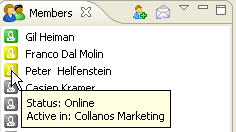
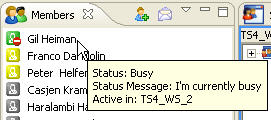
In this scenario, Peter is indeed online but currently active in another workspace called "Collanos Marketing".
Gil has set his status to be "Busy" and Franco is also online but in another workspace.
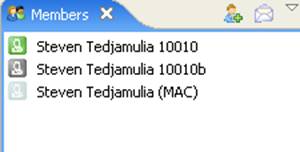
If there was a green icon near Peter's name, this would have indicated he was active in the same workspace.
The yellow icon indicates the member being online but in another workspace and the grey icon that they are offline.
Changing the Status
- To change your presence status, right click on the current presence status in your task bar, and select one of the three options.
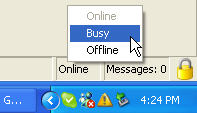
The new presence status is set.
- If you change your presence status to "Busy", a new dialog opens prompting you to enter the message to be displayed to other members.
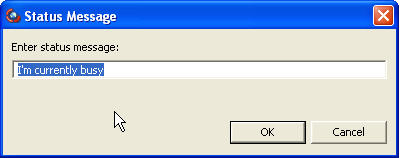
The presence status is set to "Busy" and other team members will see your status message once they have their cursor on your name in the Members pane.
Invitation Status
When an invitation is pending the invited user’s status will be light blue until the invited user accepts or rejects the workspace. Once an invitation has been accepted the workspace will start transmitting and the users presence status will turn yellow.
Notes:
- To change your presence to "Online" you must actually be online, otherwise it defaults to "Offline".
- By default, upon starting the application, Collanos Workplace searches for a network connection. If one is available, the presence status defaults to "Online".
Related Tasks: