Collanos in the Media
 October 20
Collanos Press Releases
Collanos Blog
Collanos Forum
User Quotes
Collanos Workplace, on the other hand has a comfortable, elegant interface that doesn't make it hard to use.
— Scott Rhoades, Writer, 
Invite Members
Posted August 13th, 2007 by gil
Related Tasks:
At this point you have created the workspace folder structure and can now invite members to your new workspace.
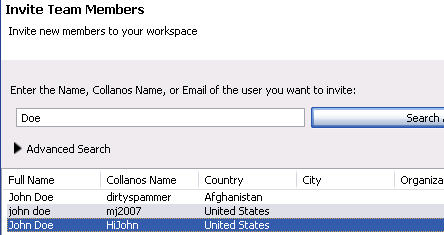
- Action: Invite members by searching for them in the Collanos directory and then inviting them to your workspace.
Enter the name, email address or organization of the member you want to invite and then click on the "Search" button.

Notes:
- Member must have registered with Collanos in order to be invited to your workspace.
Result: Search results are displayed.
- Action: Highlight the name of the user you want to invite and click on the "Invite" button.
Notes:
- Repeat this step to invite multiple users to your workspace.
Result: A list of one or more members to be invited are displayed.
Notes:
- If you want to delete a name you just added, highlight it with your mouse and then click on the "Remove" button.
- Action: Click on the "Finish" button.
Result: Your new workspace is created and displayed in your Active Workspaces view.

Notes:
- Once the user accepts the invitation, the Pending status will change along with the grey color of the icon.
- When searching/inviting Collanos members in the directory, you will not be able to locate yourself or any other member in the currently active workspace, as you are already members of that workspace.
Step 4: Adding Content to Your Workspace
Related Tasks: